Enabling Automations
Your Automation has two copies: the draft copy that you build and test in the Self-Service Automation Builder, and the production copy that runs when your Automation is enabled.
At any point as you test your Automation, you can save a draft copy by clicking the Save draft button. Clicking this button will not affect your production copy.
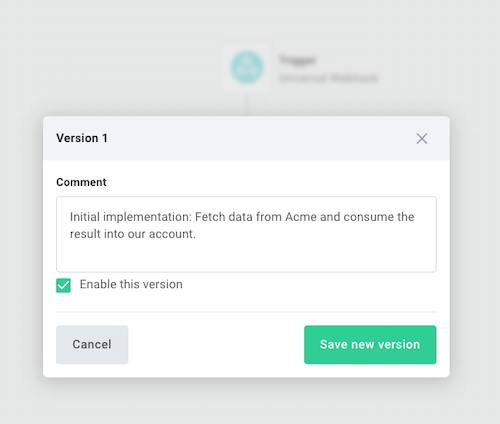
Once you are satisfied with testing and your Automation works as expected, you can enable the production copy by first clicking the arrow to the right of Save draft and then selecting Save as new version. Give your version a comment (describing what you changed), and optionally select Enable this version.
Alternatively, you can enable your Automation by clicking the Enable button at the top left of the canvas.
Enabling your Automation has the following effects:
- It makes a production-ready copy of your Automation. Any changes you make to the Automation after enabling it will not affect the production copy unless you explicitly save a new version and enable it.
- If your workflow uses a schedule trigger, it will start running on the schedule you defined.
- If your workflow uses a webhook trigger, it will start listening for incoming webhook requests using its production URL.