Testing Automations
As you build your Automation, you can test it to ensure that it works as expected. This article describes how to test your Automation within the Self-Service Automation Builder.
The test runner drawer
The test runner drawer appears at the bottom of the Self-Service Automation Builder when you click Test or Run history. Within the drawer, you can see the results of test runs of your Automation (both runs triggered by the Test button and runs triggered by a webhook request).
Running a test of your Automation
To run a test of your Automation, click the Test button at the bottom of the Self-Service Automation Builder. This will open the test runner drawer and start a new test run of your Automation. You can also click the Run history button to open the test runner drawer without starting a new test run.
Running a test with a webhook request
If your Automation is triggered by a webhook request, you can run a test with a test payload in one of two ways:
-
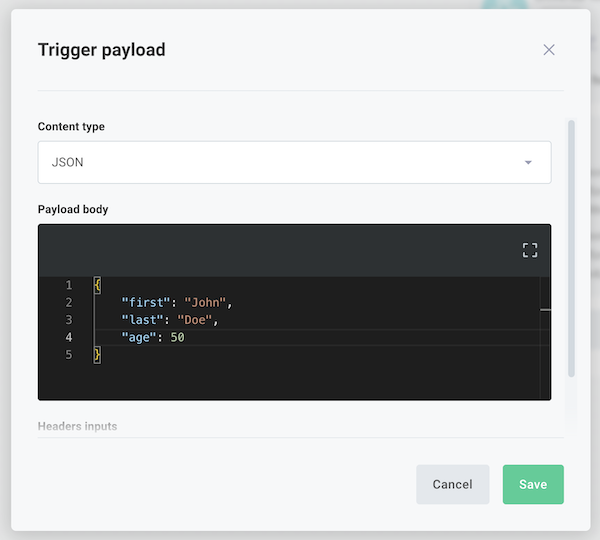
Click the trigger of your Automation and then open the Test tab. Click the Trigger Payload button and specify a payload. The next time you click the Run button, the test run will use that payload as the webhook request.
-
In your trigger's Test tab, expand Webhook URLs. Your Test URL represents the webhook URL of your test Automation (the Automation you see in the Self-Service Automation Builder) and Live URL represents the URL of your workflow when you enable it.
Use a tool like Postman or cURL to send a POST request to your URL with a test payload.
Test run results and logs
You can observe the results of your test runs in the test runner drawer. Select a test run and then select a step of your Automation to see the results of that step. You can also see the logs for each step, which can help you debug any issues that arise during the test run.
Replaying test invocations
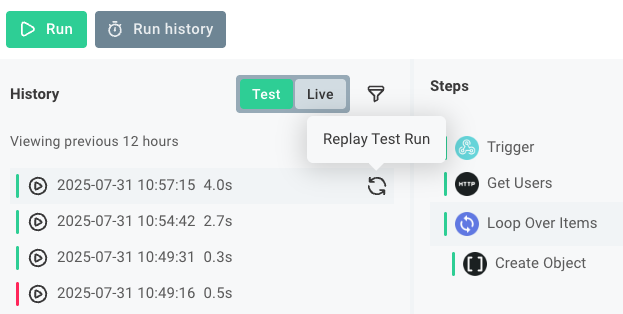
If your Automation relies on data sent from a third-party service, you can replay a test invocation to simulate the same data being sent again. That way, you don't have to configure the third-party service to send the data again, and you can test how your modified Automation handles that same payload.
Mouse over the test invocation you'd like to replay and click the circular Replay Test Run arrow icon that appears.